🚀 Nmap: The Basics — A Beginner-Friendly Guide (TryHackMe Walkthrough)
This blog serves as a beginner-friendly guide to understanding the world of cybersecurity. From defining what cybersecurity is to exploring its two major domains—offensive and defensive security—it breaks down various career paths such as Security Analyst, Engineer, Penetration Tester, and more. Whether you're just curious or planning a career, this blog gives you the insight and direction to get started in the cybersecurity field.
🚀 Nmap: The Basics — A Beginner-Friendly Guide (TryHackMe Walkthrough)
If you’re stepping into cybersecurity or penetration testing, one tool you must master is Nmap. In this blog, I’ll walk you through the fundamentals of Nmap in a simple, Google-friendly format — covering host discovery, port scanning, service detection, timing control, output handling, and more.
Let’s dive in. 👇
🔎 What is Nmap?


4
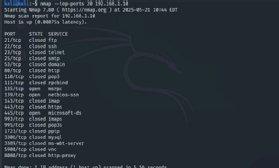
Nmap (Network Mapper) is an open-source network scanning tool used for:
Discovering live hosts
Finding open ports
Detecting running services
Identifying service versions
Guessing operating systems
Saving detailed scan reports
It was first released in 1997 and is now one of the most powerful tools in cybersecurity.
🖥️ 1. Host Discovery — Who Is Online?
Before scanning ports, we need to know which systems are alive.
📌 Command:
nmap -sn 192.168.1.0/24
What -sn Does:
Performs a ping scan
Discovers live hosts
Does NOT scan ports
Target Formats You Can Use:
IP Range →
192.168.1.1-10Subnet →
192.168.1.0/24Hostname →
example.com
🔹 Local Network Scanning
If you're directly connected (WiFi/Ethernet), Nmap uses ARP requests.
🔹 Remote Network Scanning
If routers are involved, Nmap uses:
ICMP Echo
TCP SYN probes
TCP ACK probes
🔓 2. Port Scanning — Who Is Listening?
Every device has 65,535 TCP and 65,535 UDP ports.
Let’s explore the main scan types.
🔹 TCP Connect Scan (-sT)
nmap -sT target_ip
Completes full TCP 3-way handshake
Easy to detect
Default when running without sudo
🔹 TCP SYN Scan (-sS) — Stealth Scan
sudo nmap -sS target_ip
Sends SYN packet only
Does not complete handshake
Faster and stealthier
Requires sudo/root
🔹 UDP Scan (-sU)
sudo nmap -sU target_ip
Used to detect:
DNS (53)
DHCP
SNMP
NTP
🔹 Limiting Ports
| Option | Meaning |
-F | Scan top 100 ports |
-p10-100 | Scan port range |
-p- | Scan all 65,535 ports |
🧠 3. Version & OS Detection

4
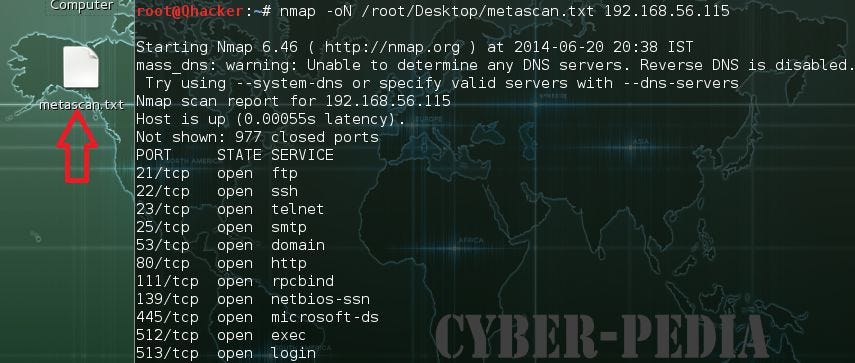
🔹 Service Version Detection (-sV)
sudo nmap -sV target_ip
Shows:
Service name
Version number
Example:
lighttpd 1.4.74
🔹 OS Detection (-O)
sudo nmap -O target_ip
Makes an educated guess about the OS.
🔹 Aggressive Scan (-A)
sudo nmap -A target_ip
Enables:
OS detection
Version detection
Traceroute
Script scanning
🔹 Force Scan Even If Host Appears Down
nmap -Pn target_ip
Treats all hosts as online.
⚡ 4. Timing Control — How Fast Should You Scan?


4
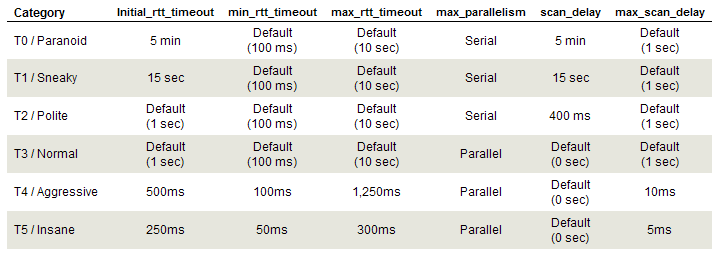
Nmap provides 6 timing templates:
| Option | Name |
-T0 | paranoid |
-T1 | sneaky |
-T2 | polite |
-T3 | normal |
-T4 | aggressive |
-T5 | insane |
Example:
nmap -T4 target_ip
Advanced Controls:
--min-rate 100--max-rate 500--host-timeout 30s--min-parallelism--max-parallelism
📊 5. Output & Reporting
🔹 Verbosity
| Option | Meaning |
-v | Verbose |
-vv | More verbose |
-d | Debug mode |
-d9 | Maximum debug |
🔹 Saving Reports
| Option | Format |
-oN file.txt | Normal |
-oX file.xml | XML |
-oG file.gnmap | Grepable |
-oA scan | All formats |
Example:
nmap -sS target_ip -oA report
Creates:
report.nmap
report.xml
report.gnmap
📝 All Answers (From This Room)
Here are all the answers gathered together:
Last IP in
192.168.0.1/27→
192.168.0.31Number of open TCP ports on
10.49.183.215→
6Flag from web server →
THM{SECRET_PAGE_38B9P6}Web server name and version →
lighttpd 1.4.74Non-numeric equivalent of
-T4→
-T aggressiveDebugging option →
-dScan used when running without sudo →
Connect Scan (-sT)
🎯 Conclusion
In this room, we learned:
Host discovery (
-sn)TCP & UDP scanning (
-sS,-sT,-sU)Port range control (
-p,-F)Version detection (
-sV)OS detection (
-O)Aggressive scanning (
-A)Timing control (
-T0to-T5)Debugging (
-d)Saving reports (
-oN,-oX,-oA)
💡 Important Tip:
Always run Nmap with sudo to unlock its full power.